Group devices as Fleet
This page outlines the steps to create and manage fleets within AosEdge. A fleet is a collection of units managed together.
- Create Fleet
- Modify Fleet
- Assign Units to Fleet
In the following page Delegate Fleets to other organizations, how to utilize the created Fleet is explained.
Create Fleet
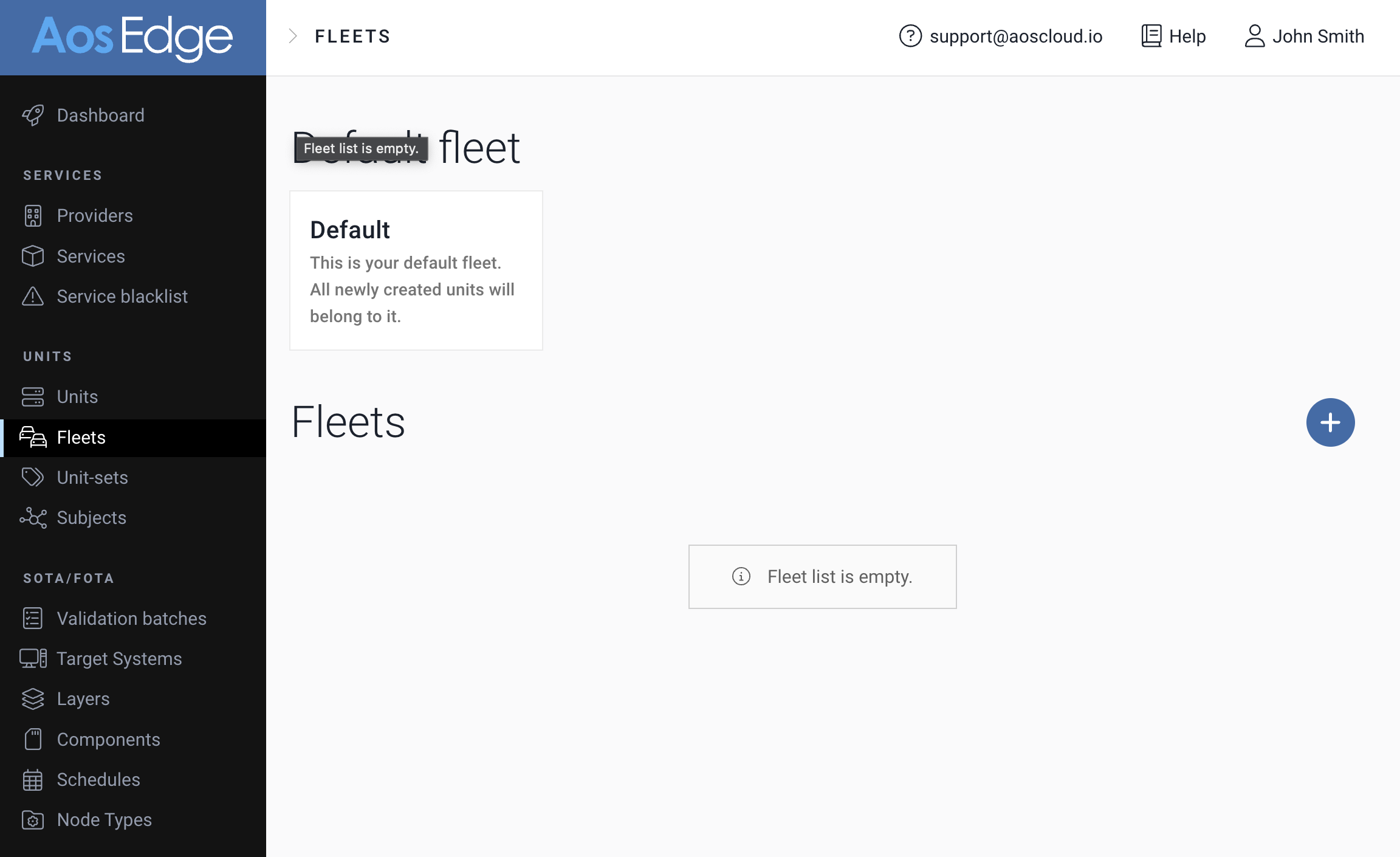
OEM users can create a new Fleet from Fleets page.
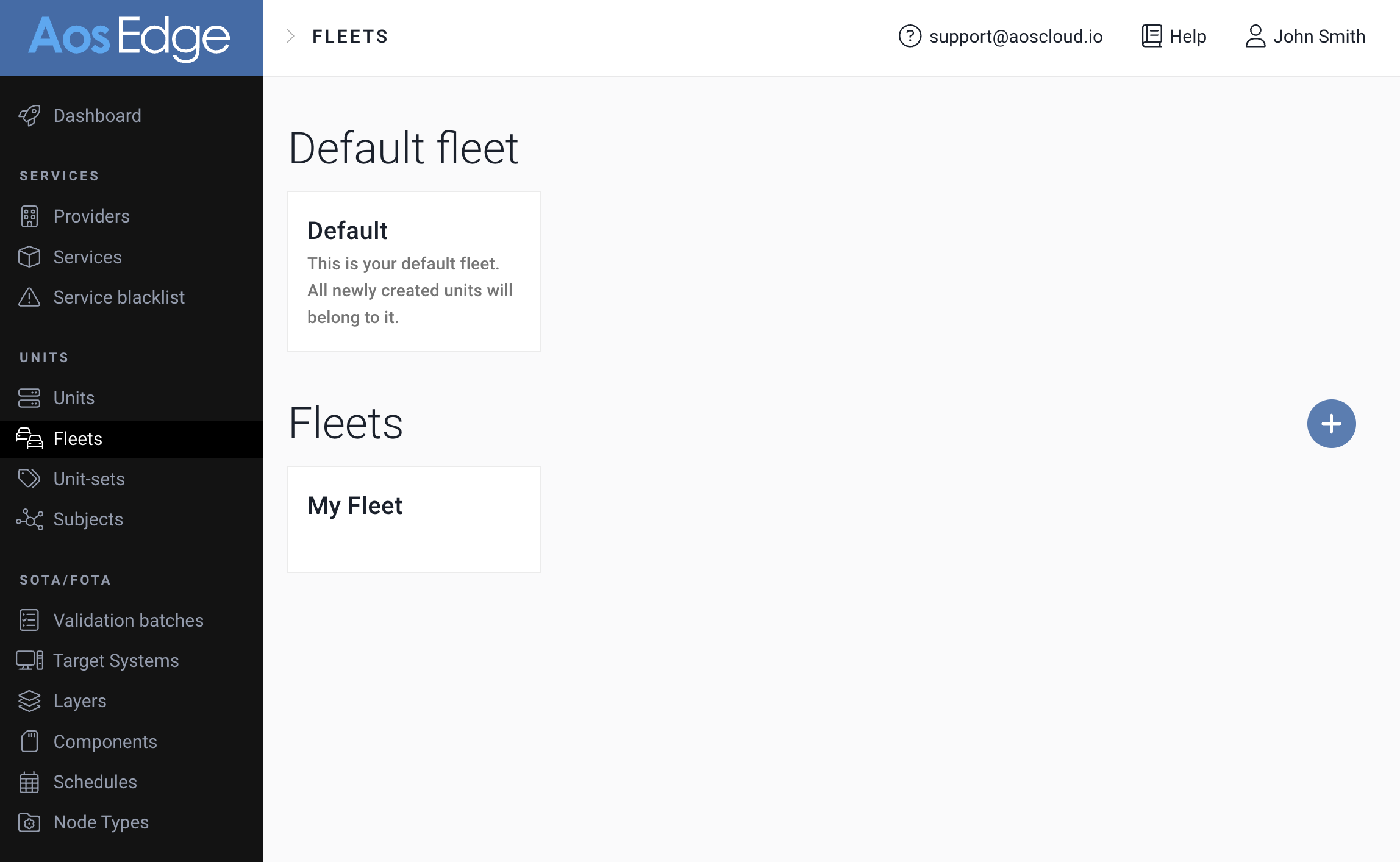
1. As OEM user, view Fleets page. Click the "+" button.
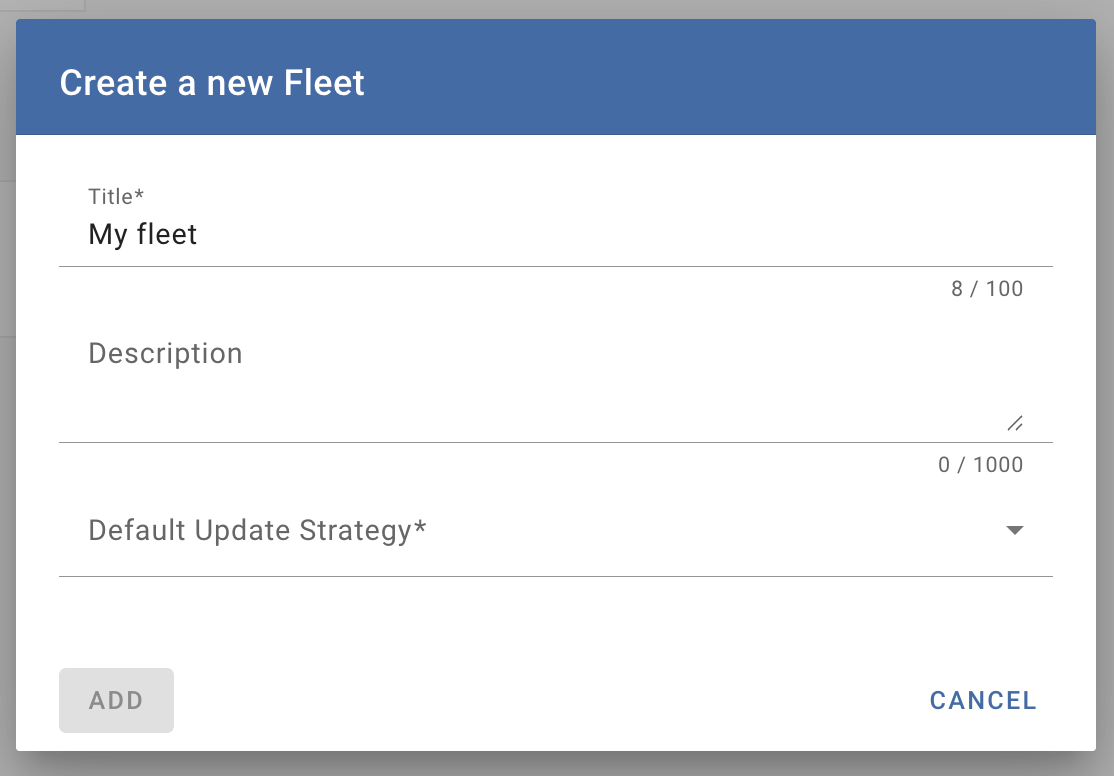
2. Enter your fleet name and description.
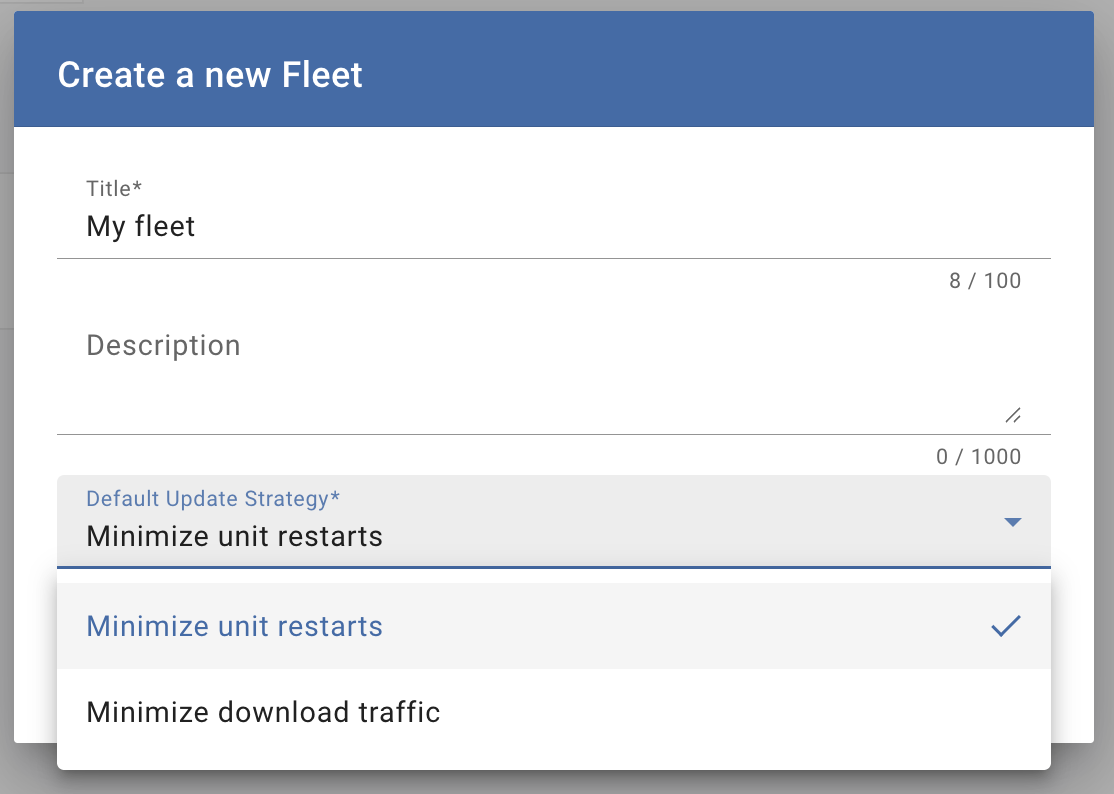
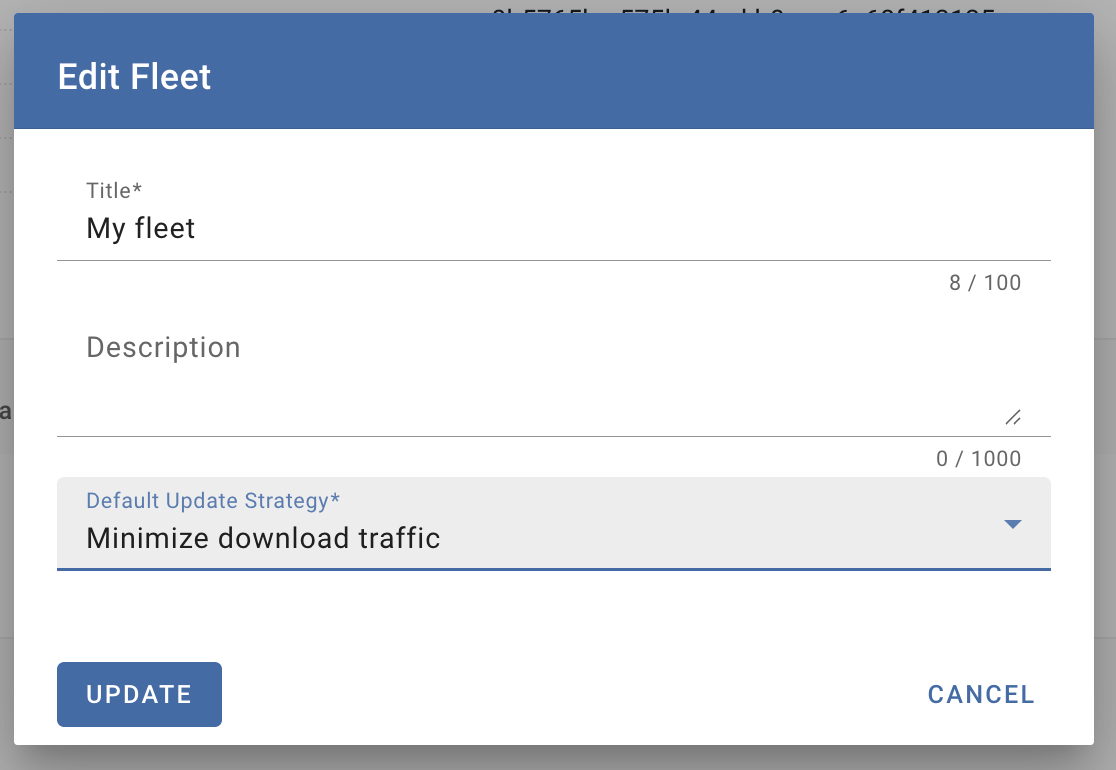
3. Enter your "Default Update Strategy" from the drop down.
- Minimize unit restarts
- Minimize download traffic
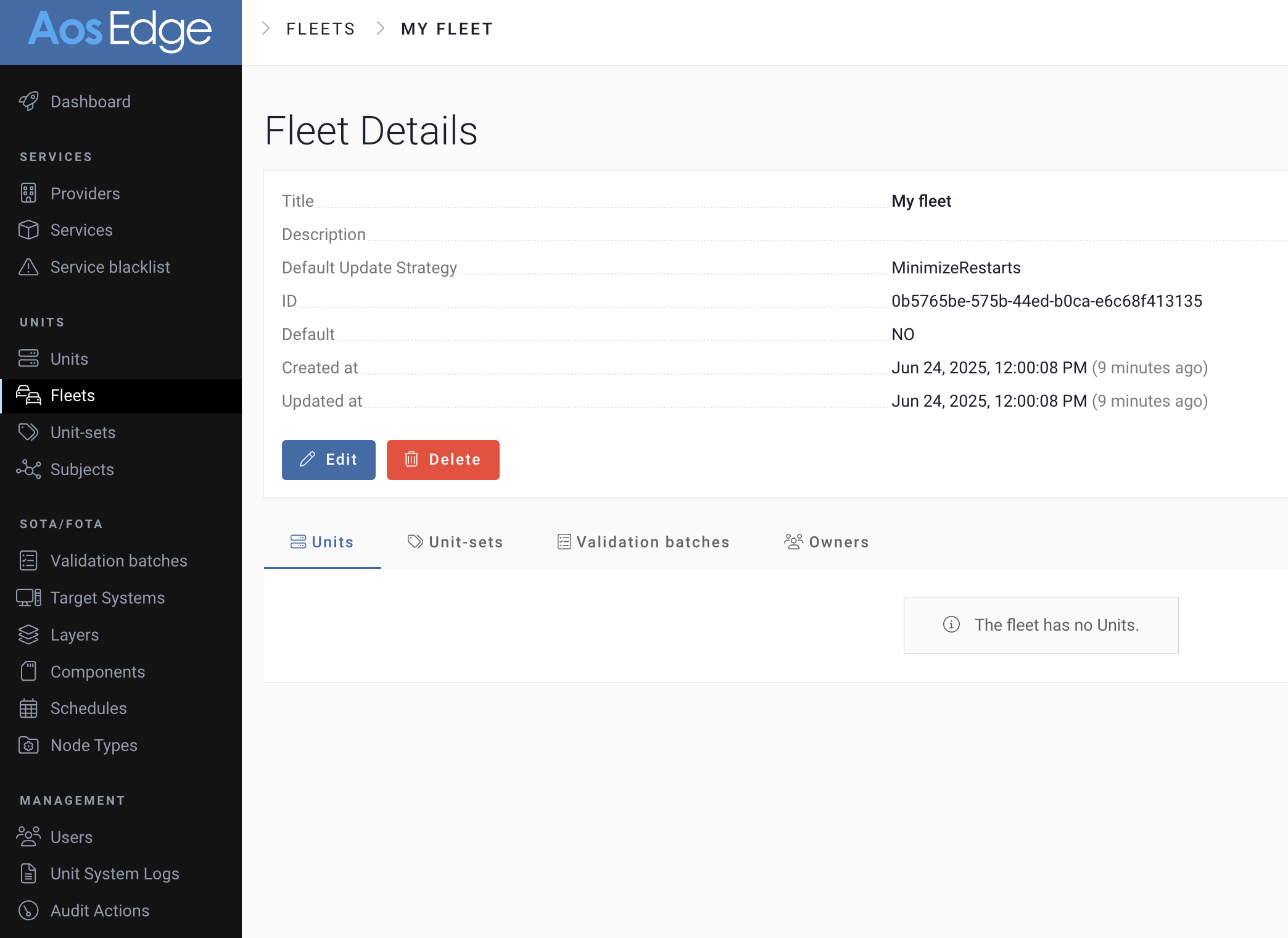
4. Created Fleet is listed. Click the created Fleet to view the Fleet Details page.
Modify Fleet
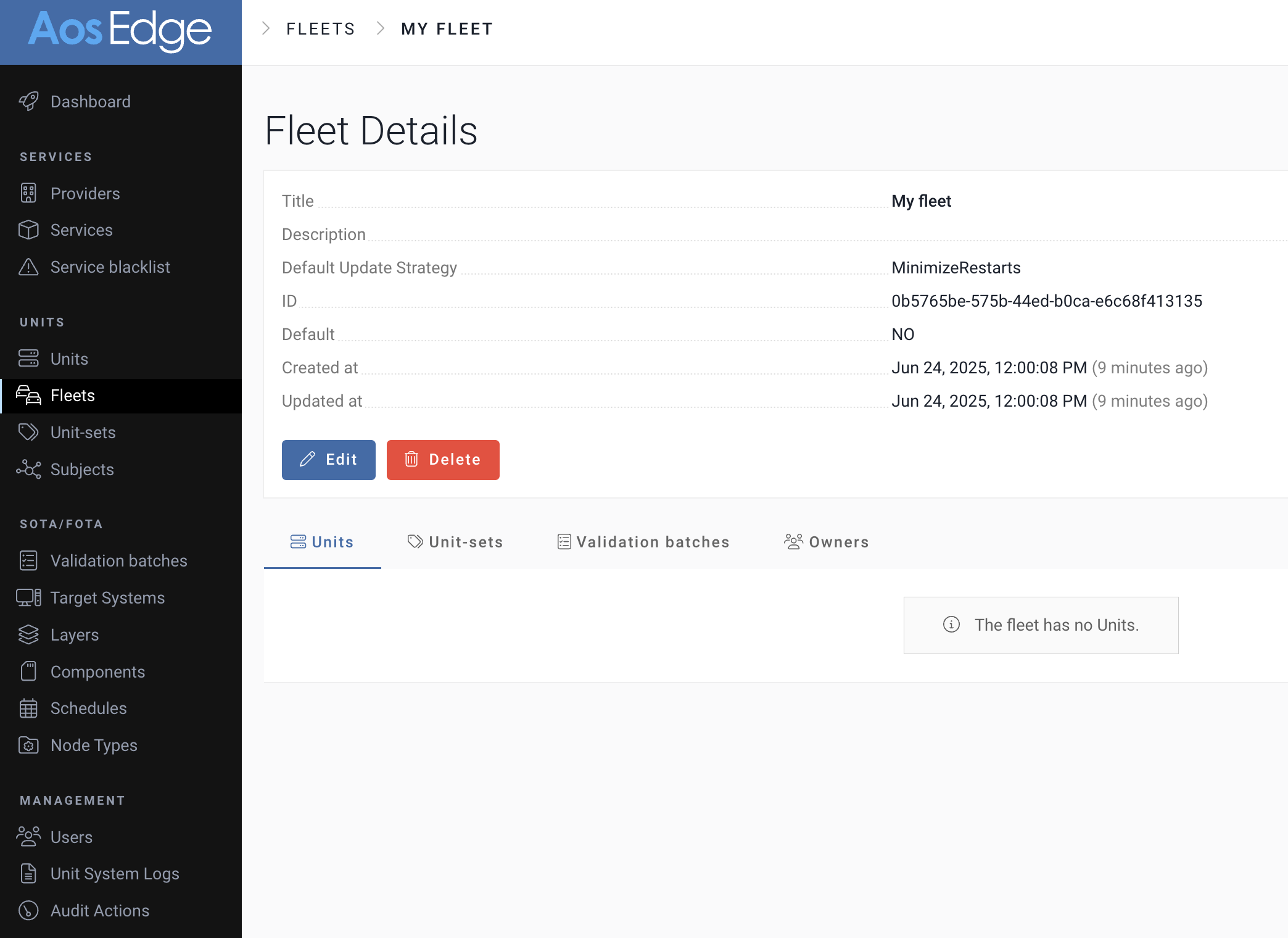
Fleets can be modified from the Fleet Details page.
1. In the Fleet Details page, click "Edit".
2. Edit the fleet information. Click "UPDATE" to save.
Assign Units to Fleet
Units can be reassigned from the Default Fleet accessible by OEM user, to a custom fleet via the Unit Details page.
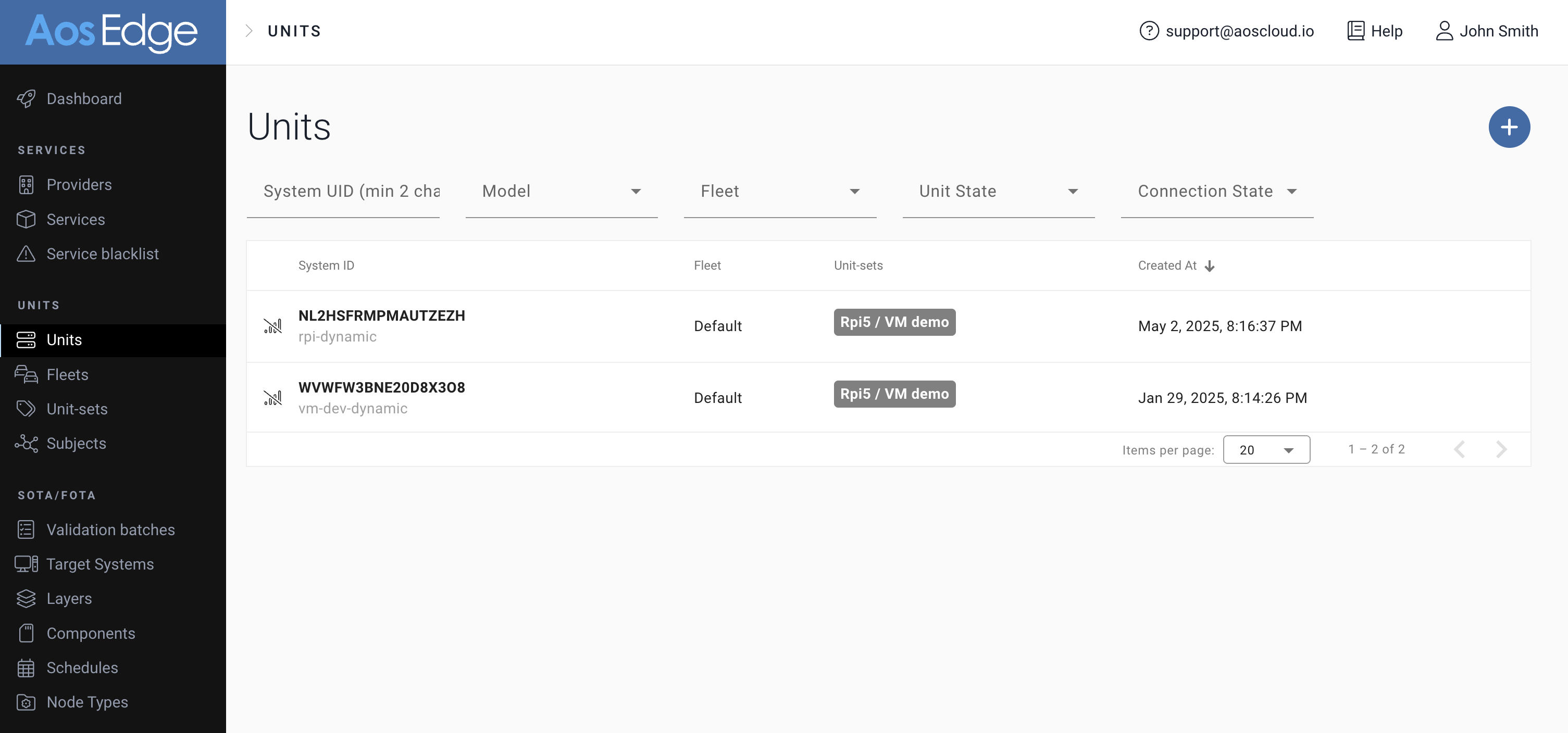
1. Go to Units. Select the unit to be assigned to a fleet.
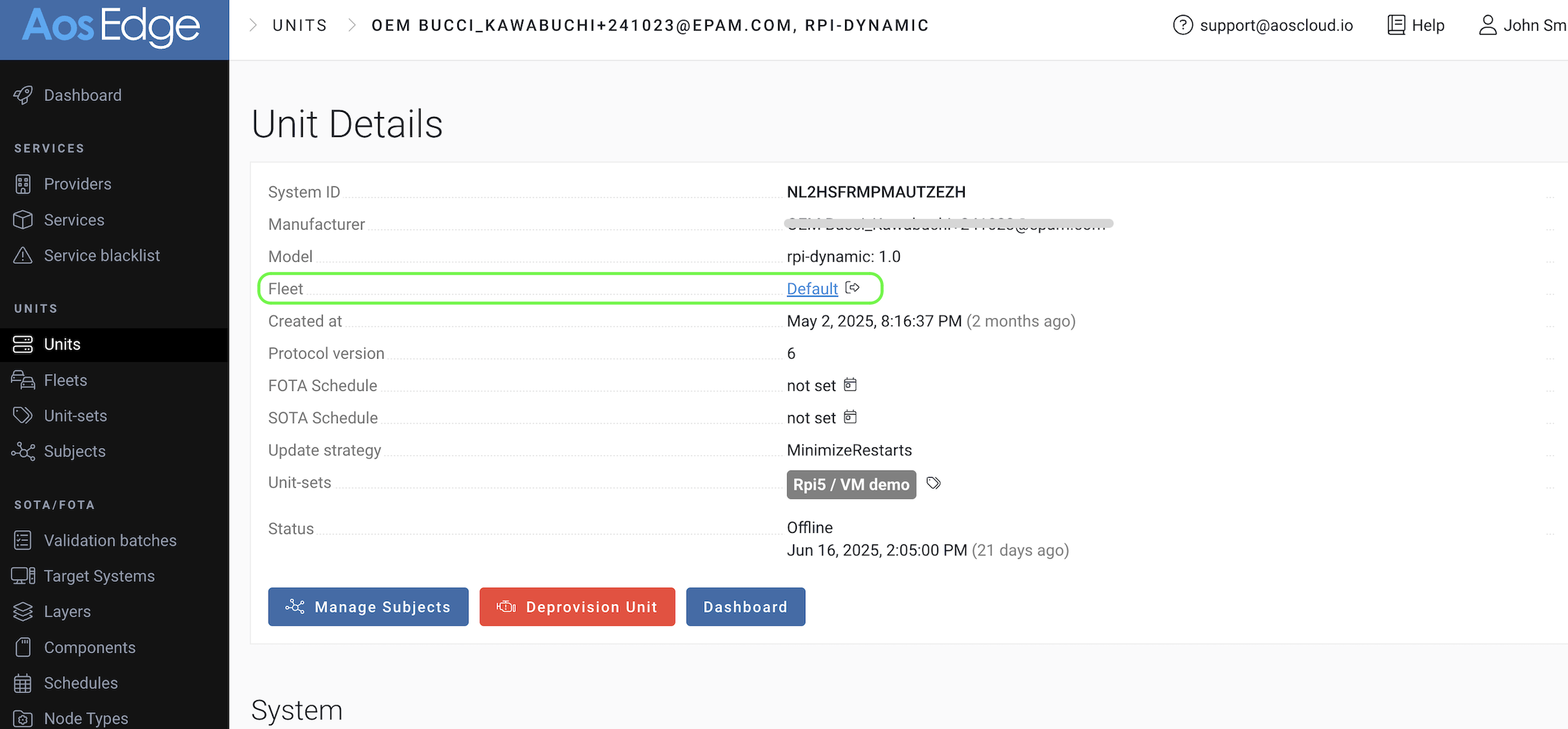
2. In the Unit Details page, "Fleet" shows the current assigned Fleet. (By default, when Unit is created, it is assigned to "Default" Fleet.) Click the icon next to the current Fleet name.
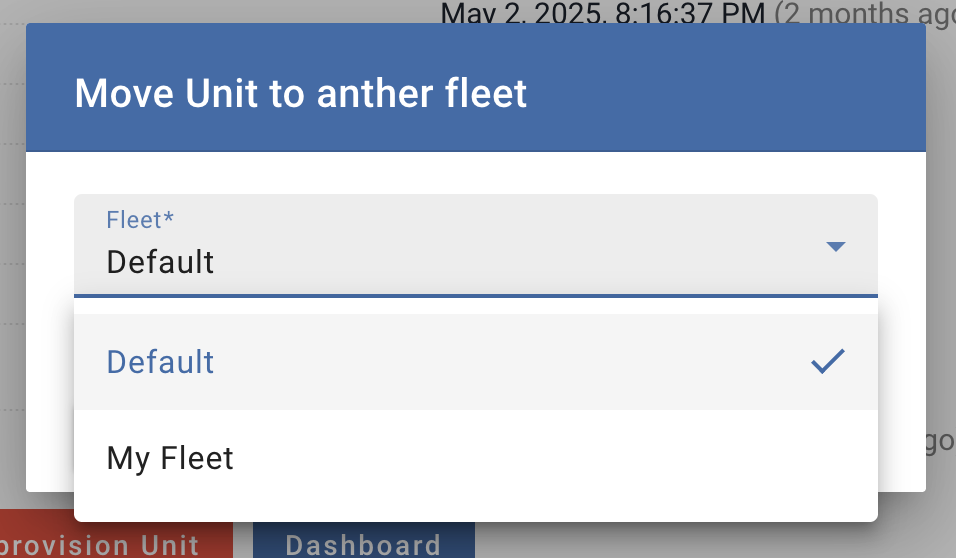
3. Available Fleets appear in the drop down. Select your target Fleet.
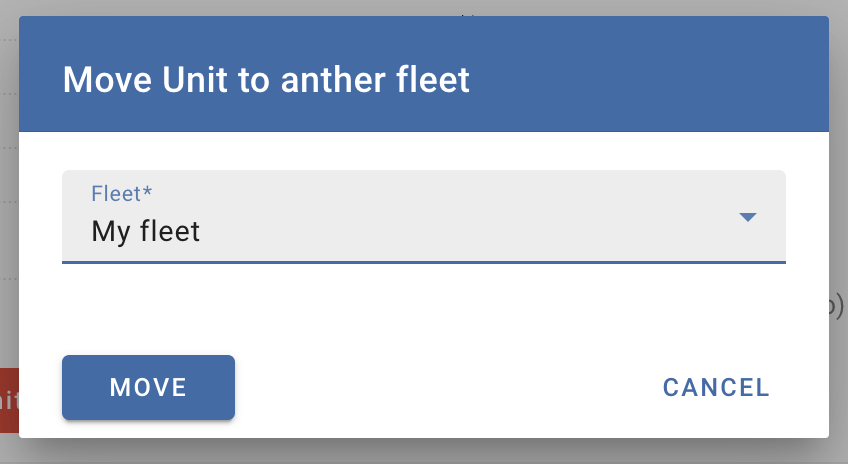
4. Click "MOVE" to save.
5. Confirm the Unit's assinged Fleet has changed.
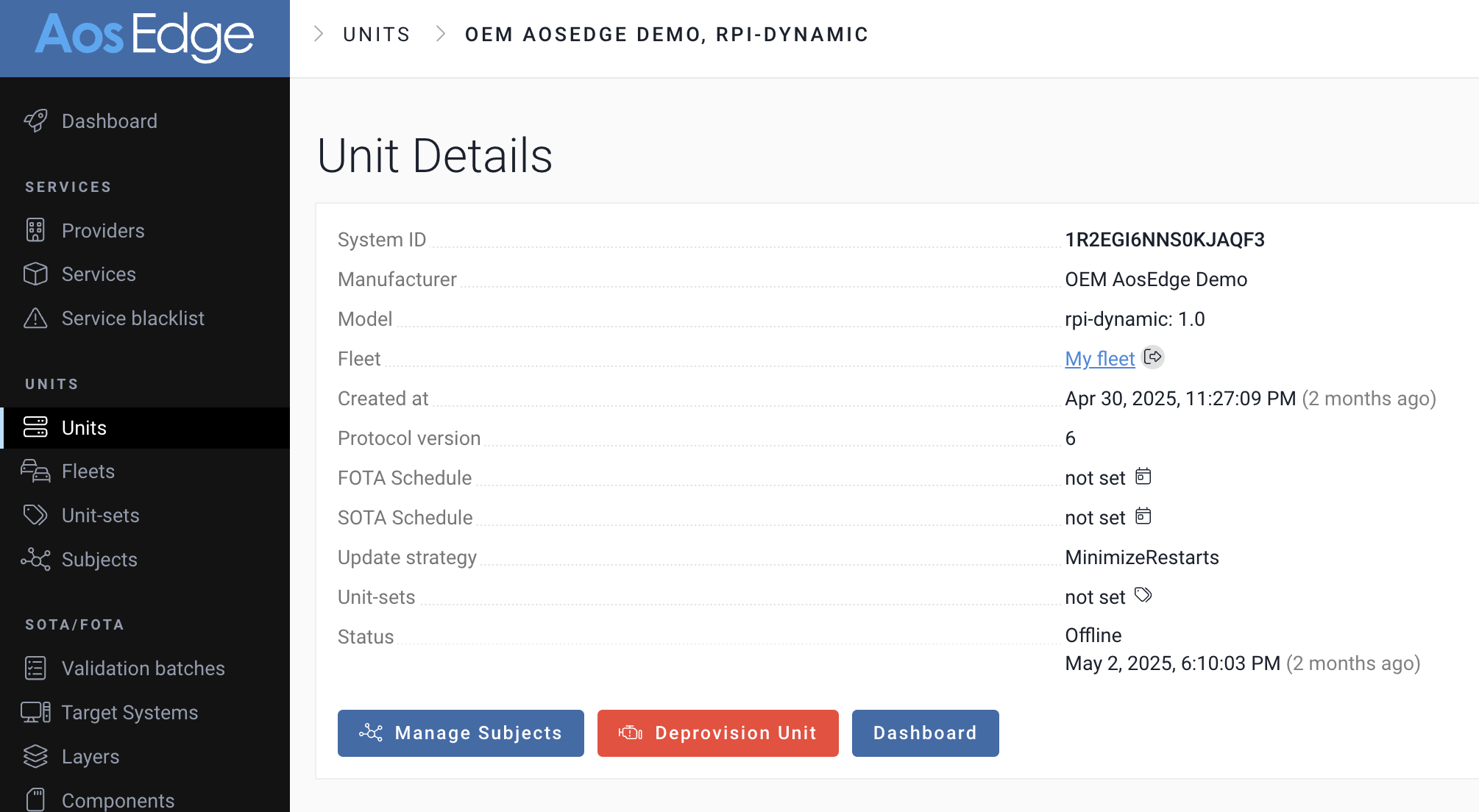
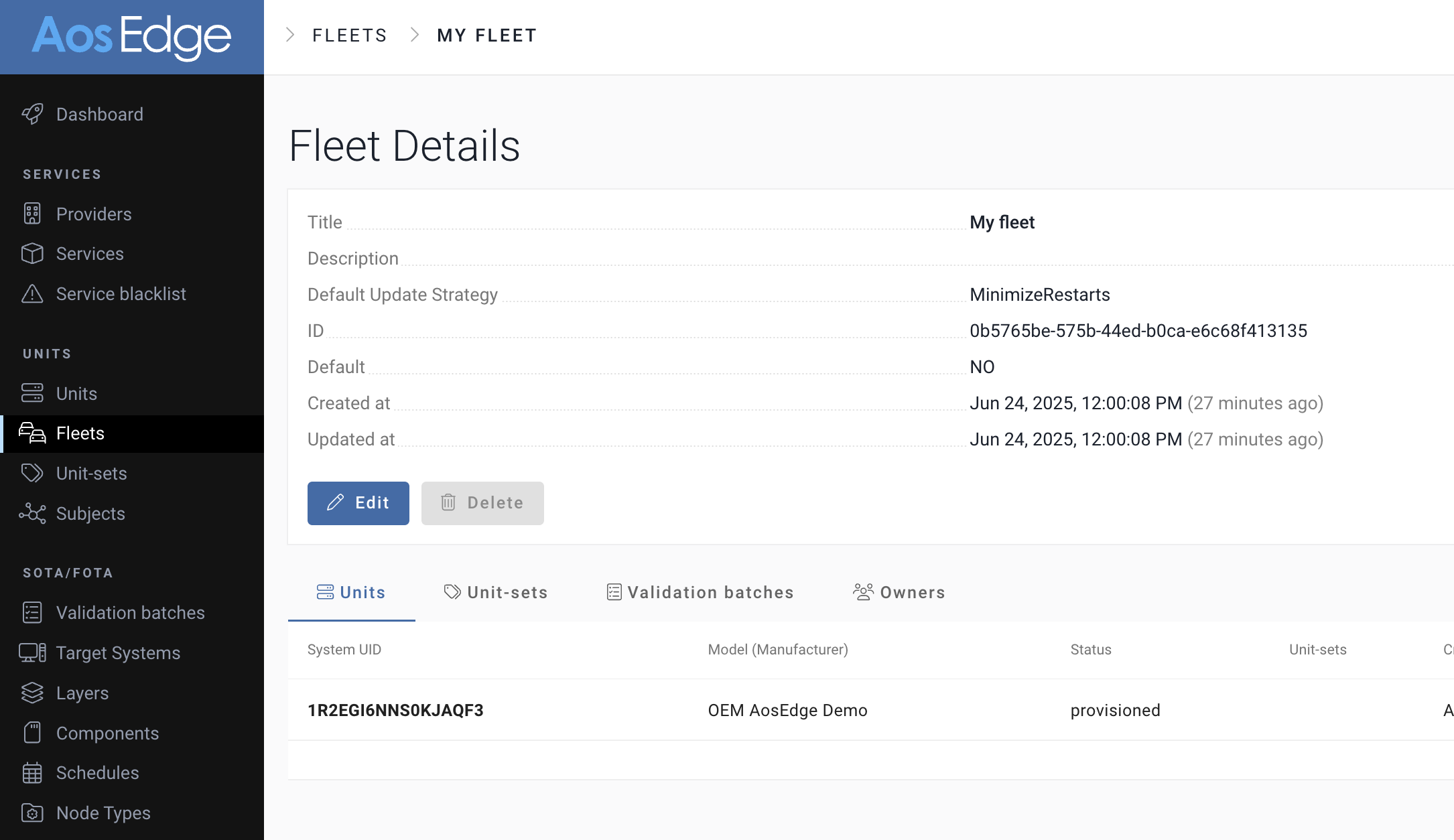
6. Go to the Fleet Details page. Confirm the assigned Unit is listed.