Use layers
The AosEdge platform's layer management subsystem is architected to facilitate the orchestration of service file systems across diverse device ecosystems.
How to build layer, you may find here.
Layers format here.
After your layer is ready, you should upload it to AosCloud:
Uploading layers
Only OEM user can upload and update layers.
To upload a new layer, go Layers tab click add and choose a file.
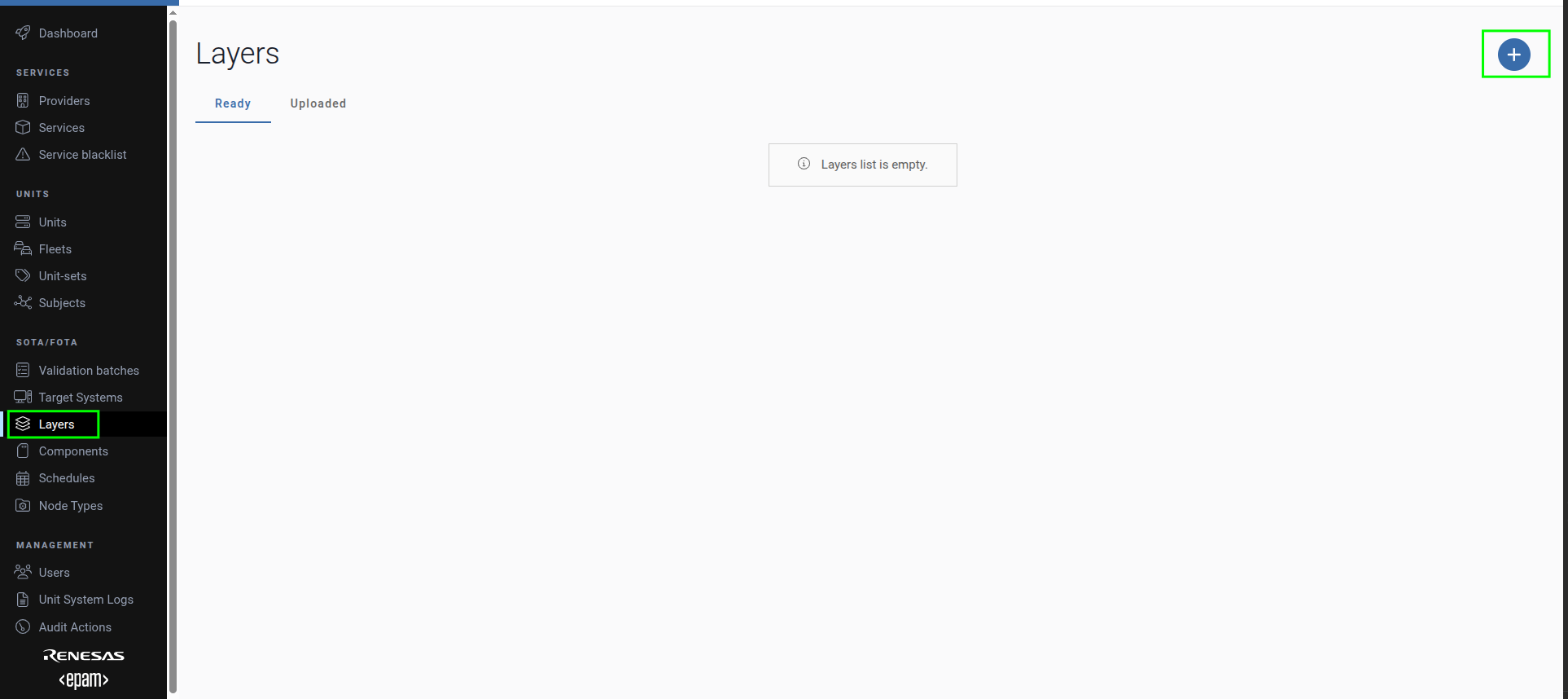
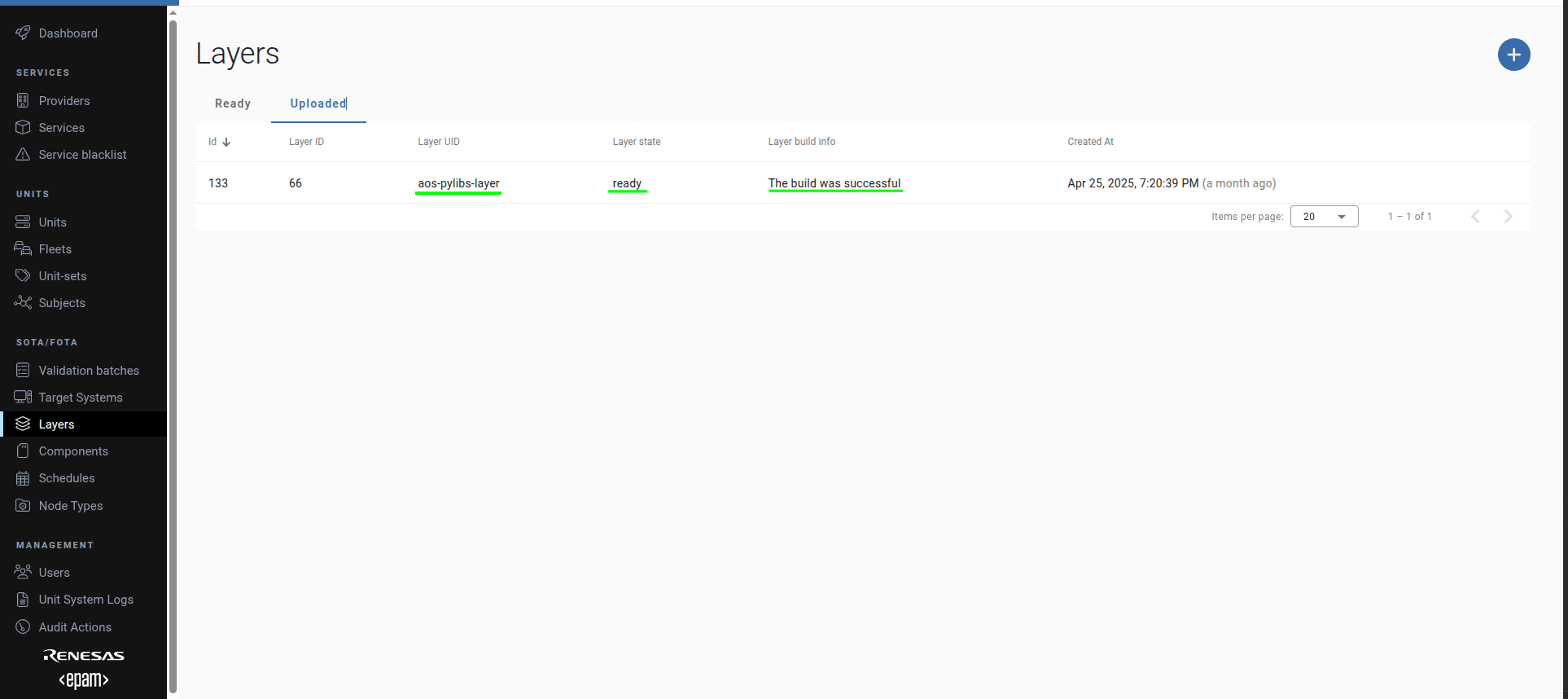
After successful upload, it will appear under Uploaded tab.
And if build is successful, it will appear under the Ready tab.
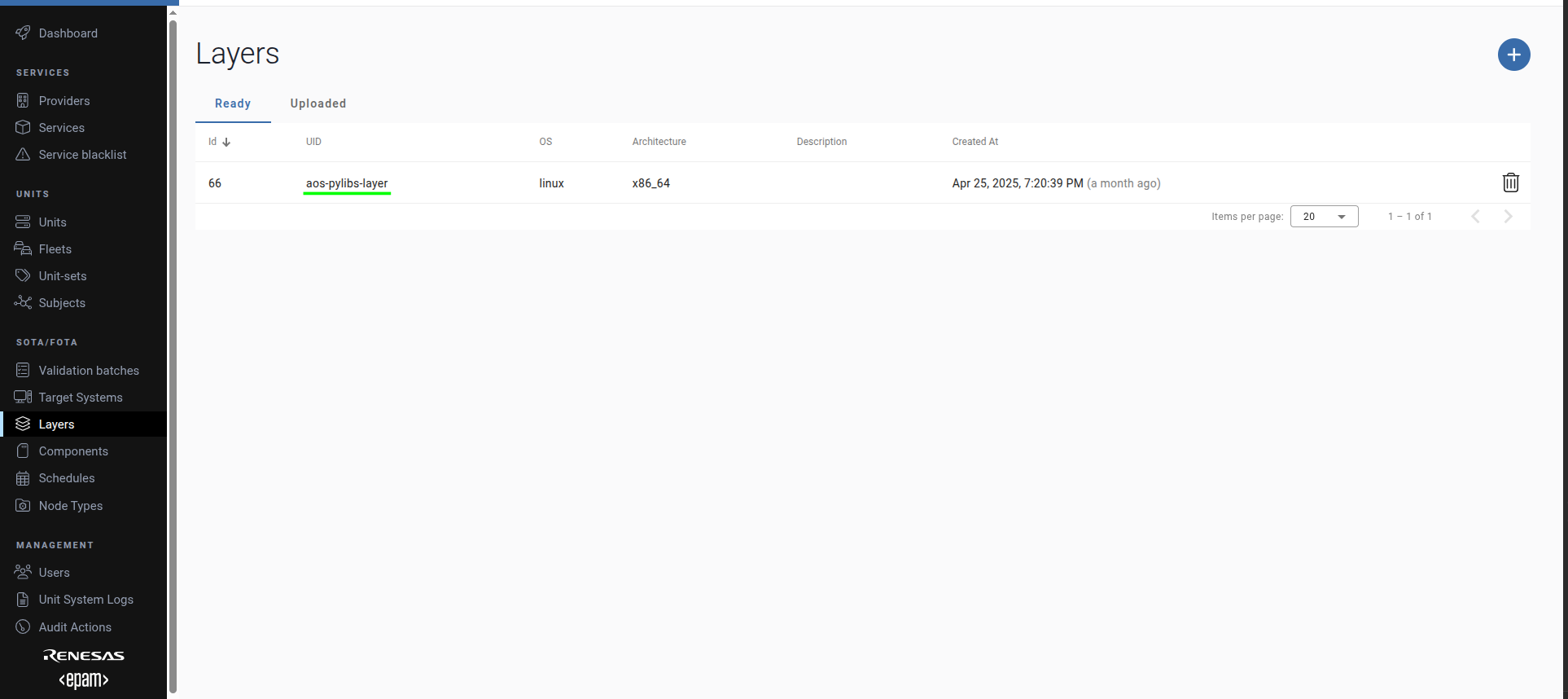
Here you may see UID of the layer and supported platforms.
Use layer
Find available layers
The SP user is able to view the list of layers for finding required one:
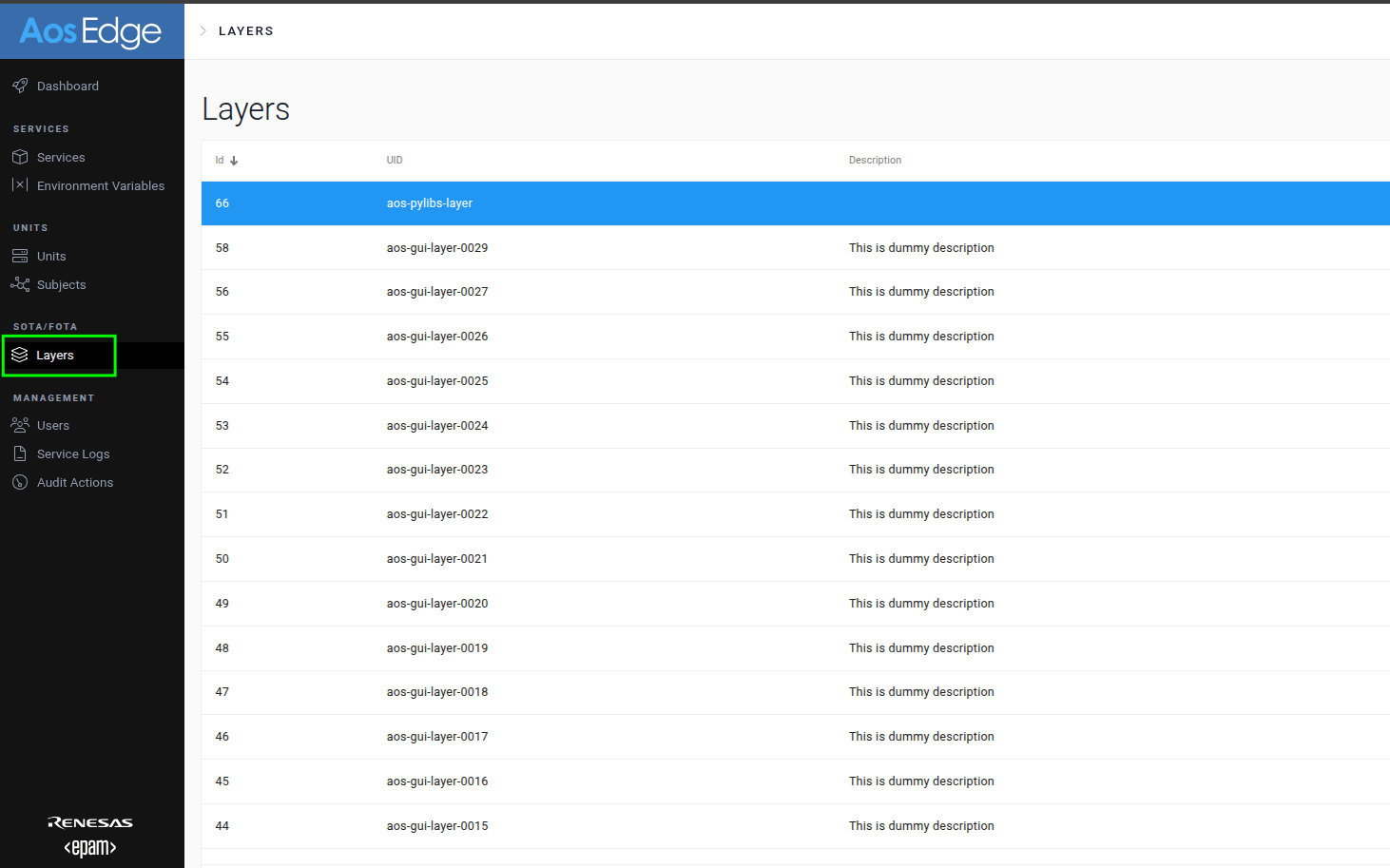
Also The SP user has access to detailed information for each layer and layer versions, including:
- List of libraries
- Library versions
- Other relevant layer information
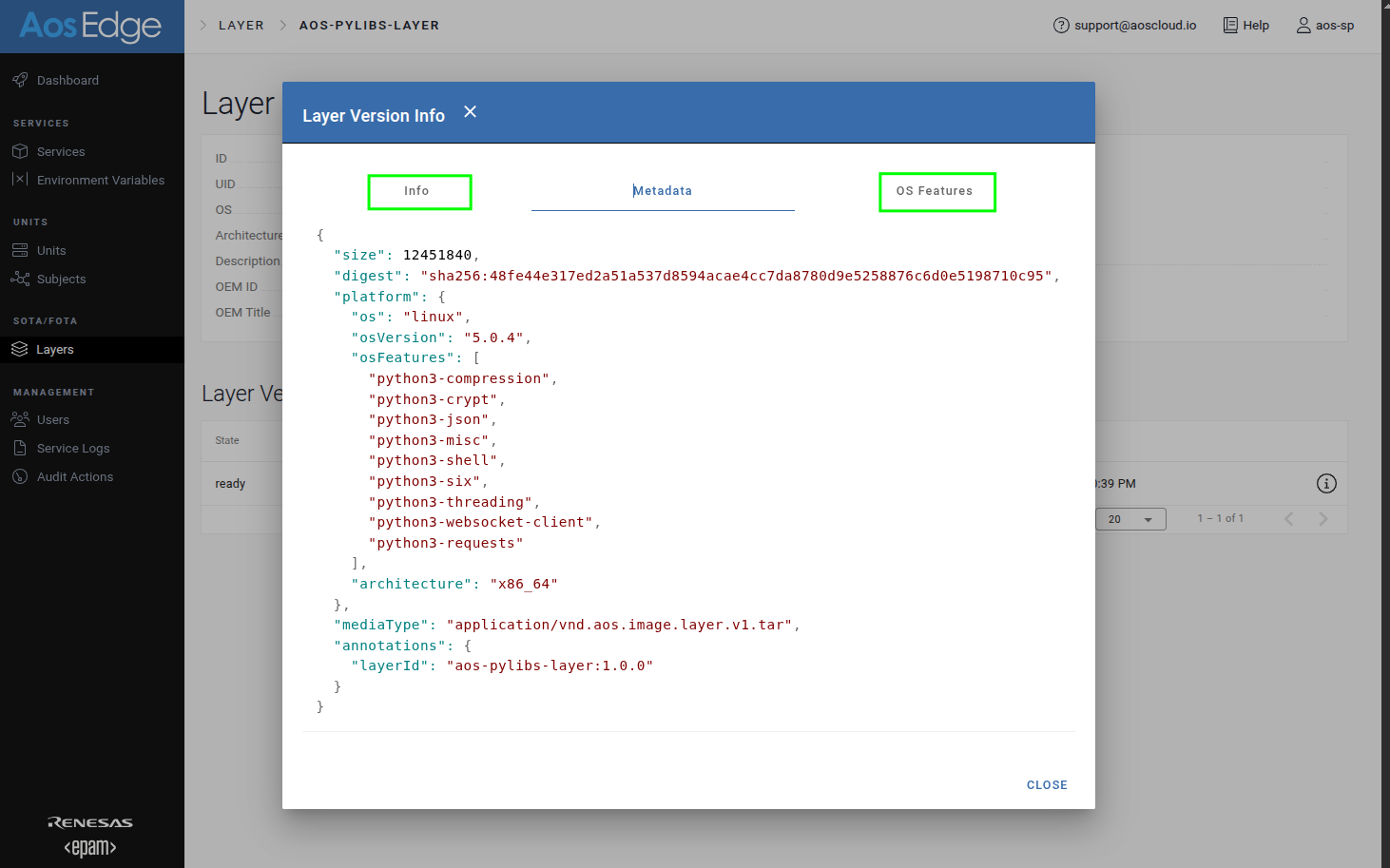
When a layer is created, its metadata (including the list of libraries and their versions) is captured in
layer.json.
Click on the required layer:
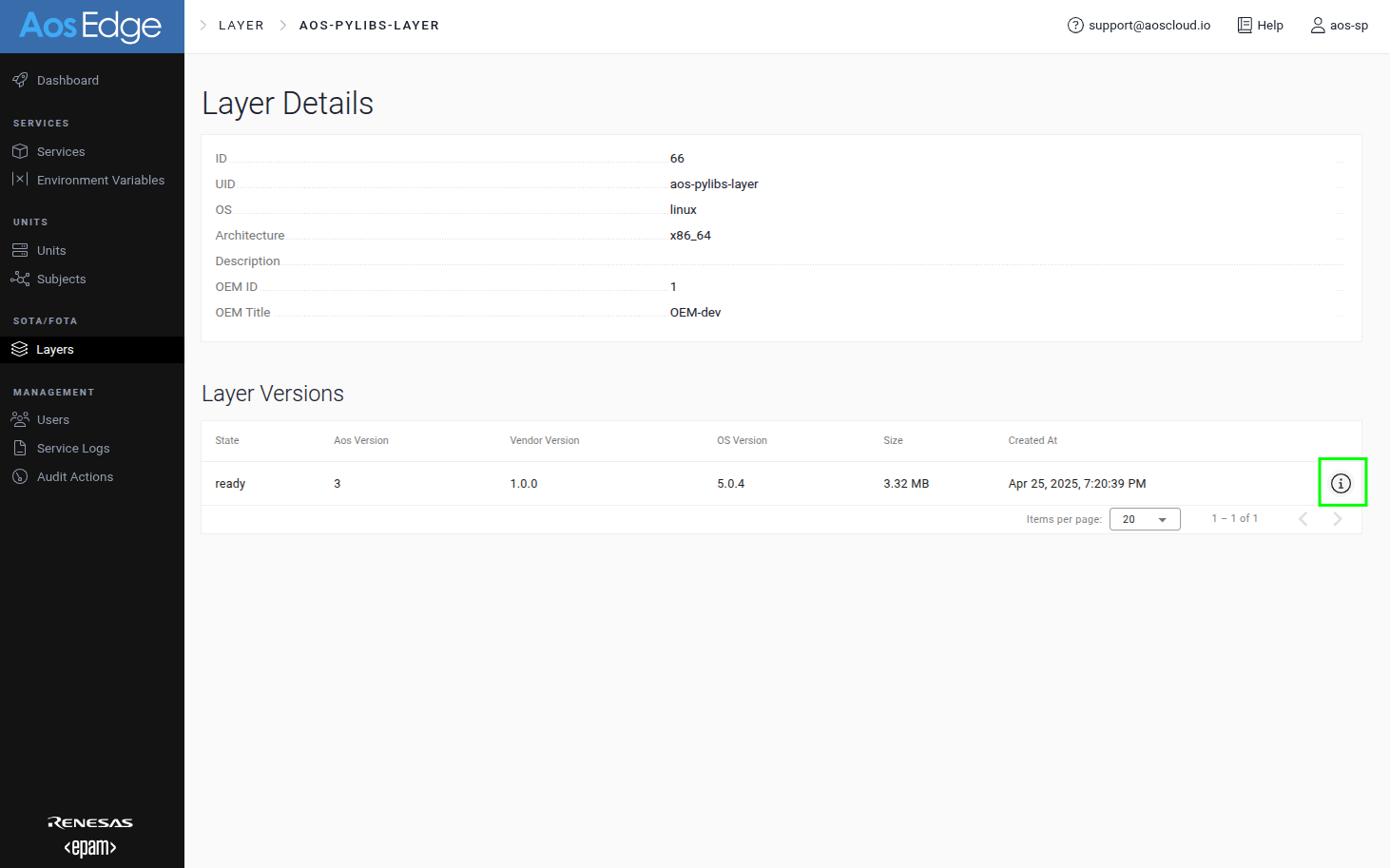
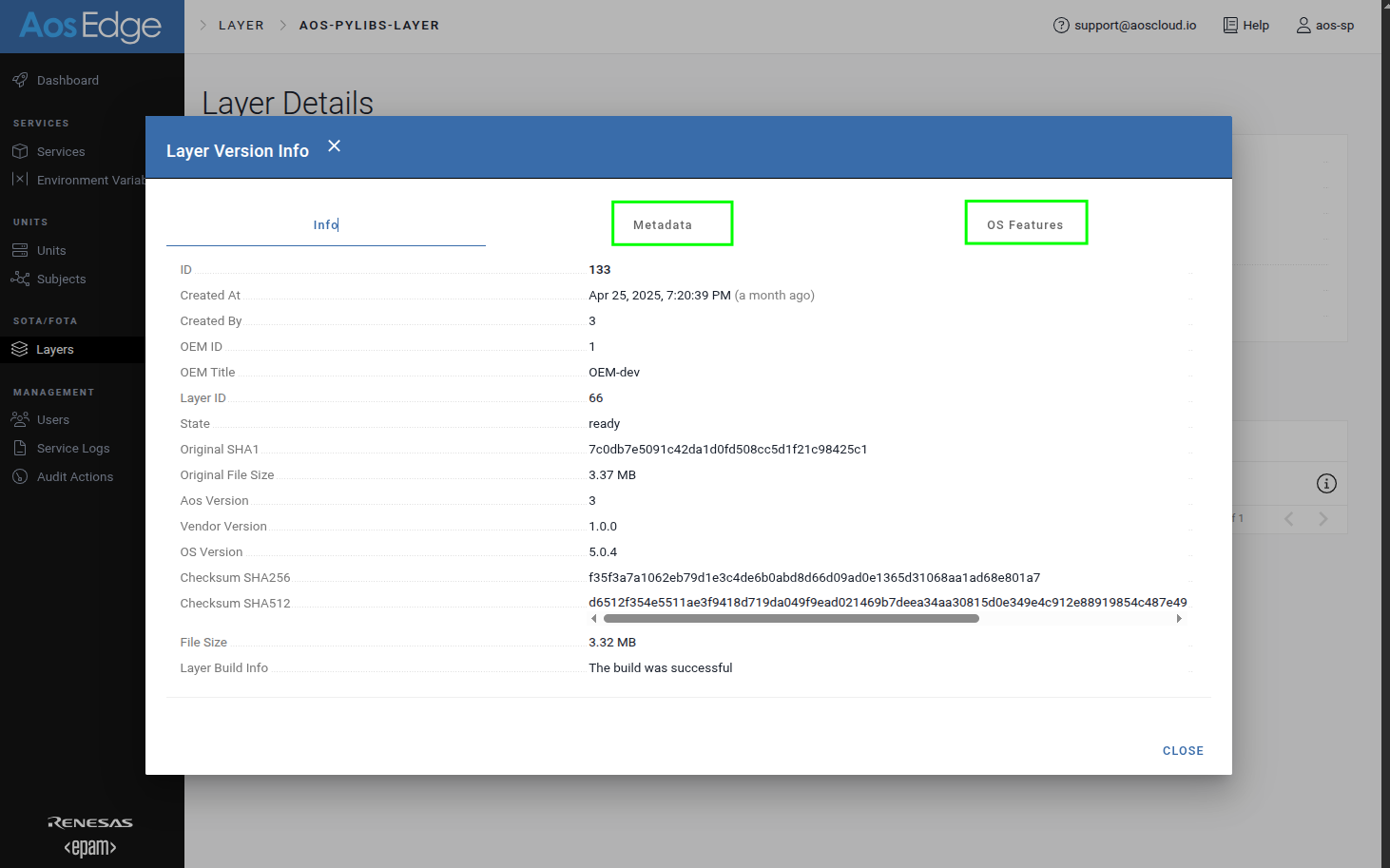
Click on the layer's version:
-
Detailed information:
-
Metadata:
-
OS Features:
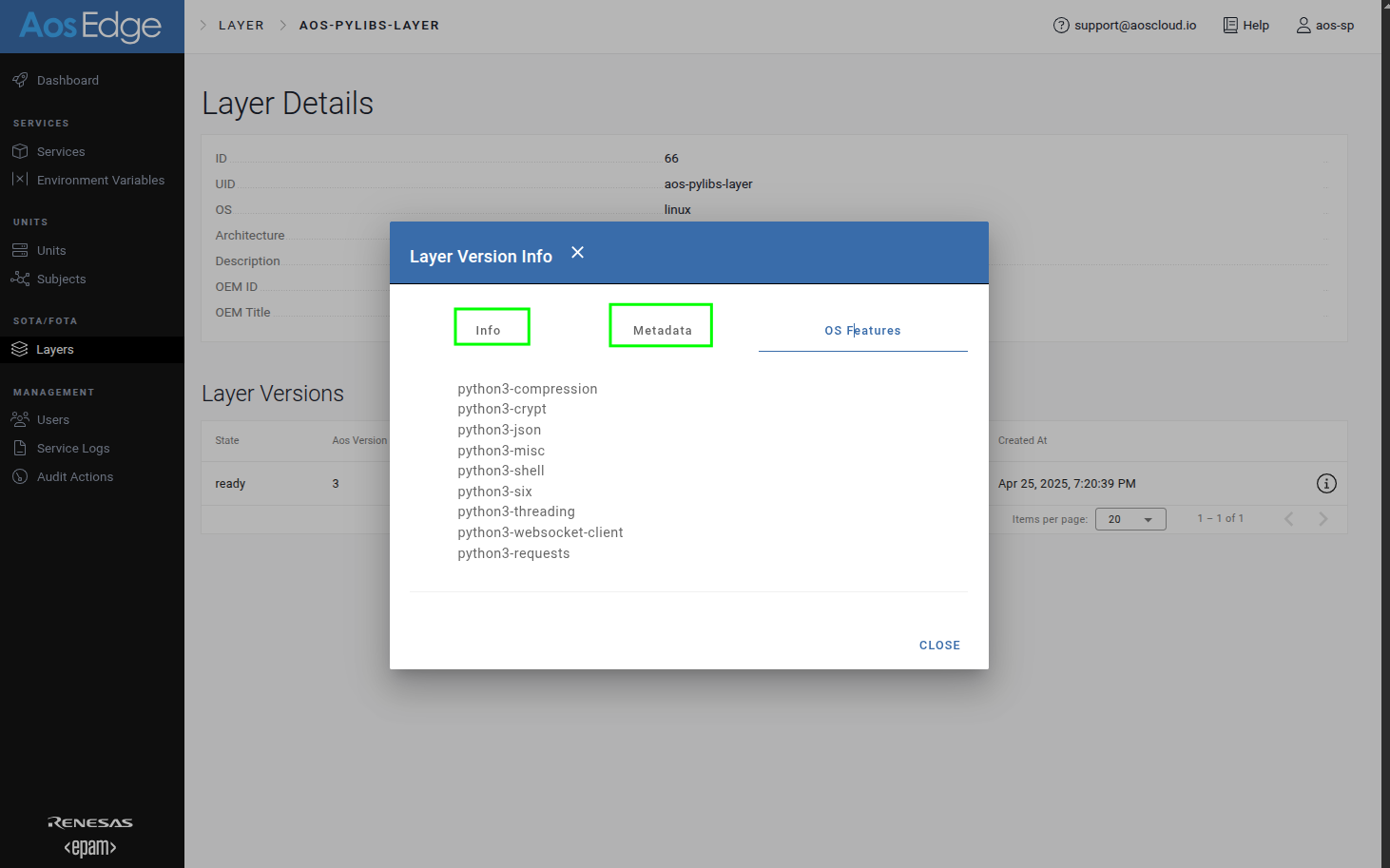
SP and OEM users can query and view the metadata of any layer within their permissions.
Use layer with service
Only SP user can allow service to use layers.
In your service version, update config.yaml with desired layer under the configuration -> layers chapter:
configuration:
    layers:
        - uid: aos-pylibs-layer
          minVersion: 1.0.0
          maxVersion: 2.0.0
NOTE: The layer version fields follow the SemVer specification.
Version compatibility rules:
- Min-max range: Defines a compatible version range where:
- "min" version is included
- "max" version is excluded
- Same values: If min and max versions are identical, that specific version is required
During service deployment, the system will select a layer version that matches these version constraints.
To use the layer:
- Upload your new service version to AosCloud
- The service will be automatically deployed with the specified layer version
Deleting Layers
Layer deletion is restricted to OEM users only. The deletion process follows these steps:
-
Initiation
- OEM users can delete layer versions through:
- Dedicated API
- User Interface
- OEM users can delete layer versions through:
-
Dependency Check
- System automatically checks for dependencies
- Verifies if any service versions are currently using the layer
-
Deletion Rules
- If no dependencies exist:
- Layer version is deleted
- If dependencies are found:
- OEM receives an alert
- Deletion is prevented
- Dependencies must be resolved first
- If no dependencies exist:
-
Confirmation
- System provides confirmation to OEM upon successful deletion
NOTE: When the last version of a layer is deleted, the entire layer is automatically removed from the system.
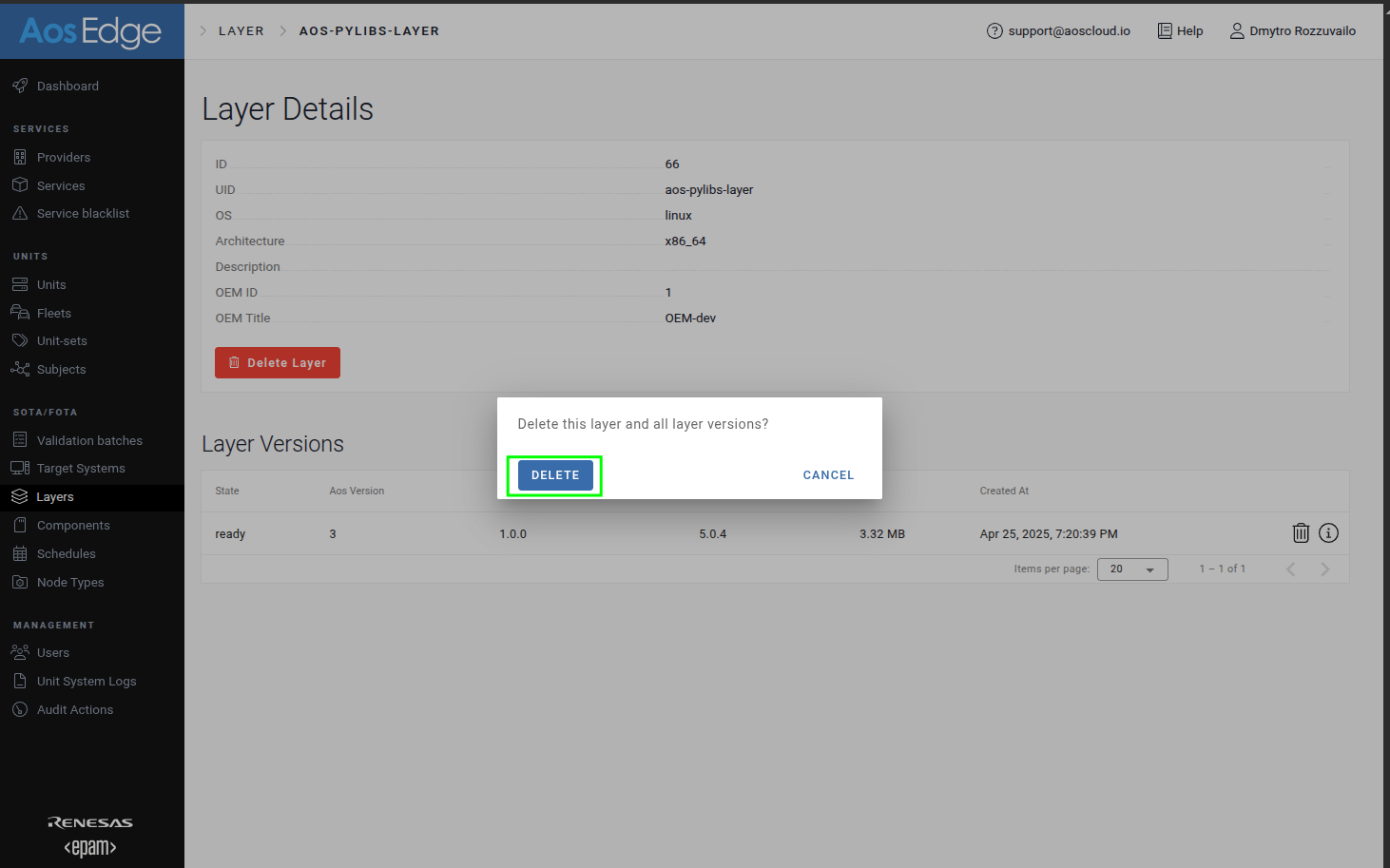
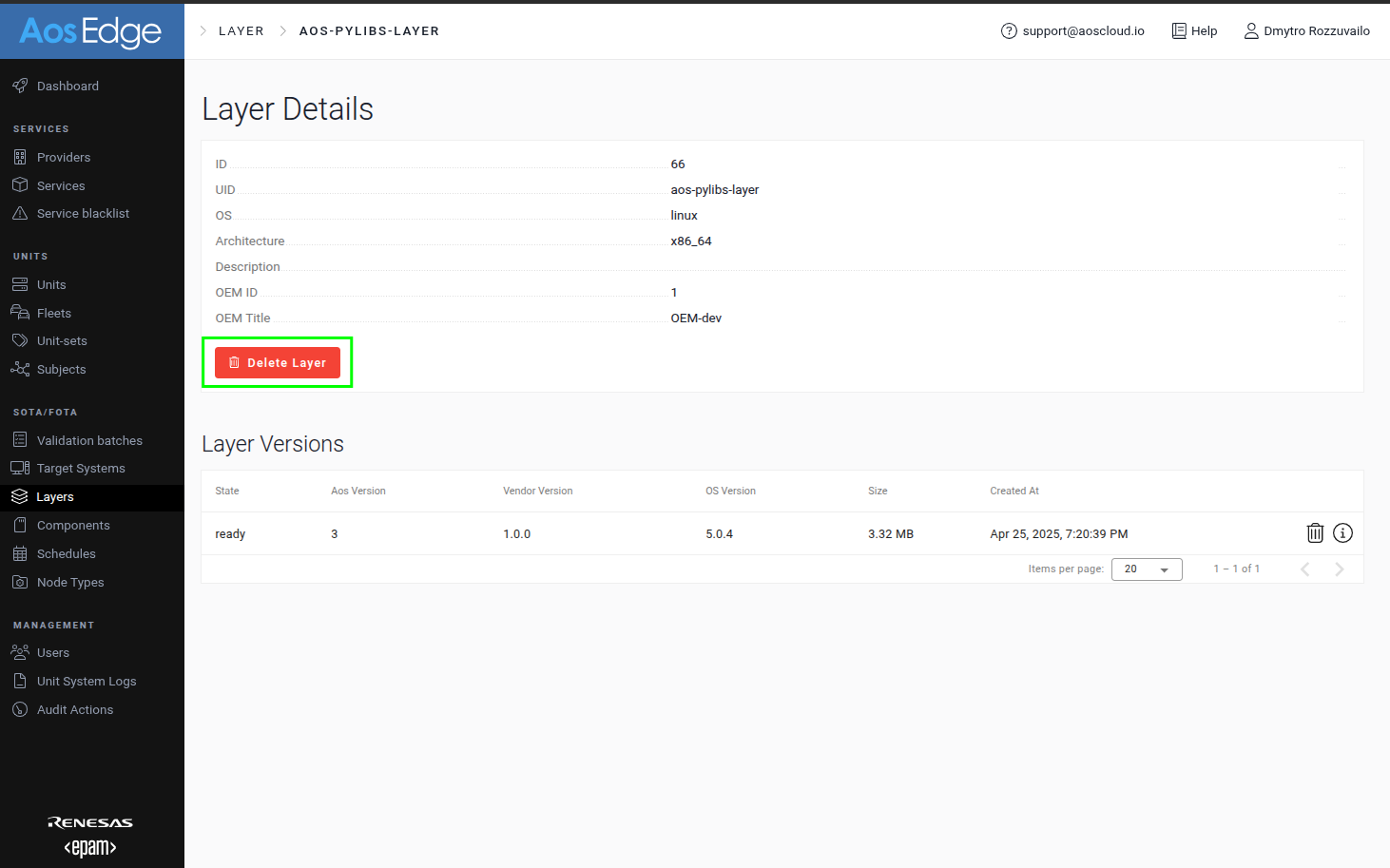
For example, select the layer that you want to delete and click on the 'Delete Layer' button:
 Confirm operation: