Install Python - Windows
Aos command-line tools support next Microsoft operating systems:
- Windows 10
- Windows 11
Download Python
Download latest Python from the official website.
Even if you've already installed Python from the Microsoft Store, or don't know the source of the Python installation, we recommended to install Python from the official website.
This prevents possible errors during Python package installation and issues related to the environment variables.
Install Python
Proceed installing the downloaded Python.
Set environment variable
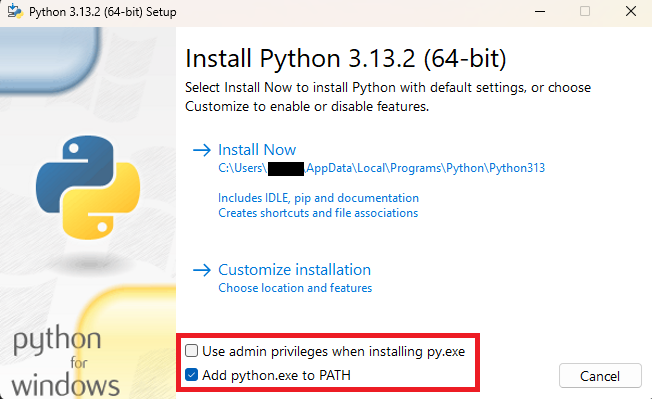
At the installation wizard screen below, allow Add python.exe to PATH using the checkbox.
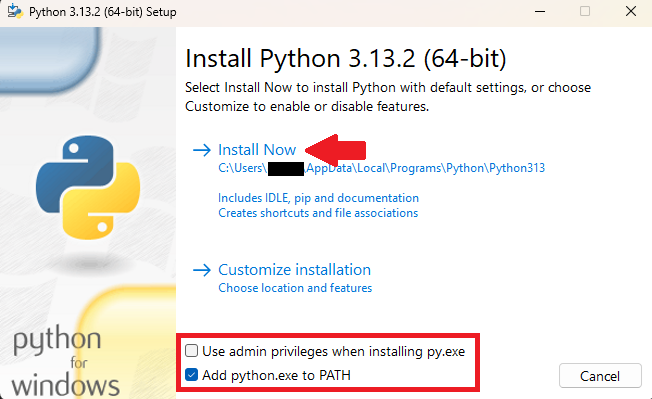
Press Install Now.
Prepare Python environment
Virtual environment is strongly recommended to avoid dependency conflicts between different versions of Python.
Create Python virtual environment
Run below command.
python -m venv "$env:USERPROFILE/.aos/venv"
Example output
PS C:\Users\User> python -m venv "$env:USERPROFILE/.aos/venv"
PS C:\Users\User>
Verify
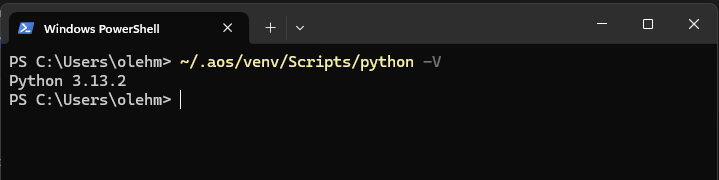
Run below command to confirm the installed Python version is 3.9 or later in this virtual environment (venv).
~/.aos/venv/Scripts/python -V