MS Windows
Supported Operating Systems
- Windows 10
- Windows 11
1. Install Python
Download the latest Python from the official website (https://www.python.org/) and install it.
Important! During the installation process, check the "Add python.exe to PATH" checkbox on the options screen (as shown in the screenshot below).
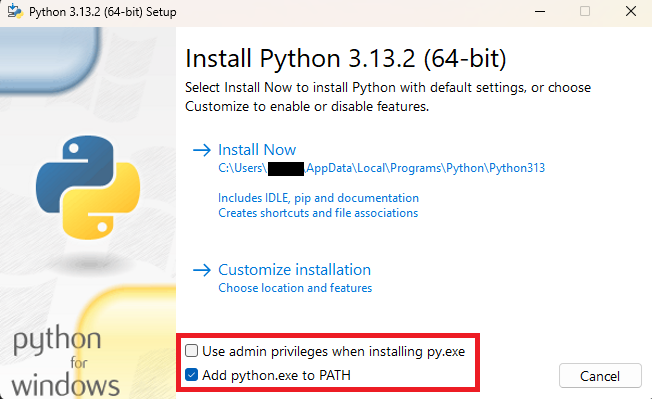
Press "Install Now" to proceed with the installation.
Even if you have already installed Python from the Microsoft Store, or do not know the source of the Python installation, you are recommended to install Python from the official website. This prevents possible errors during Python package installation and issues related to the environment variables.
2. Open the Terminal window
All next steps need to be executed in a terminal.
Read how to open the terminal window if needed
Press the Start button

and type powershell using your keyboard
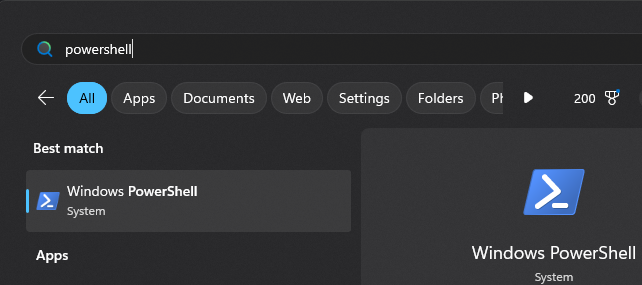
and press Enter button on the keyboard
You will see the next window:
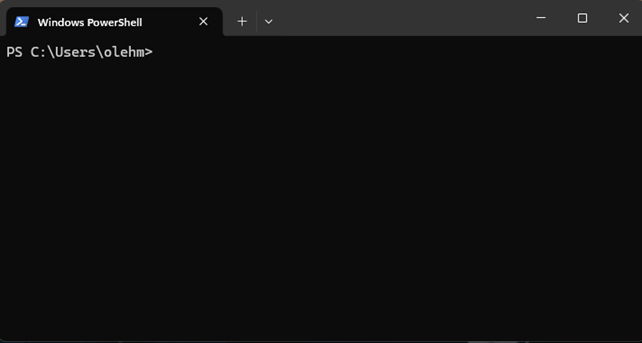
Execute (run) command means copy command from the tutorial,
paste it into the terminal windows and press Enter on the keyboard.
3. Python environment preparation
Prepare virtual environment
In the terminal window, run the next command:
python -m venv "$env:USERPROFILE/.aos/venv"
Verify environment
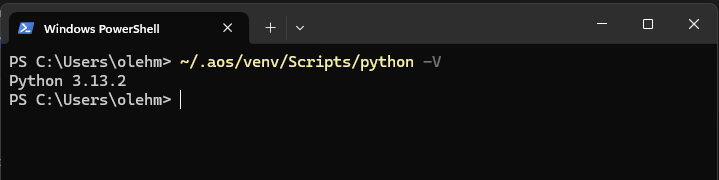
To verify installation, run the command to check the Python version (which should be 3.9 or above):
~/.aos/venv/Scripts/python -V
4. Install Aos CLI tools
In the terminal window, execute the next command:
~/.aos/venv/Scripts/python -m pip install --upgrade aos-keys aos-signer aos-prov
5. Install Aos root certificates as trusted
In the terminal window, execute the next command:
~/.aos/venv/Scripts/python -m aos_keys install-root
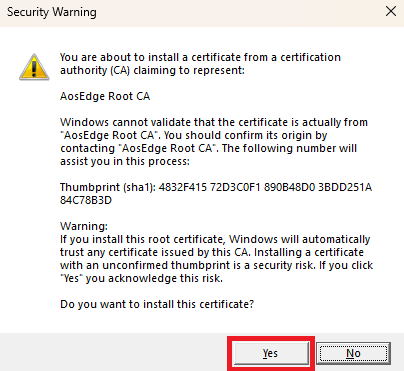
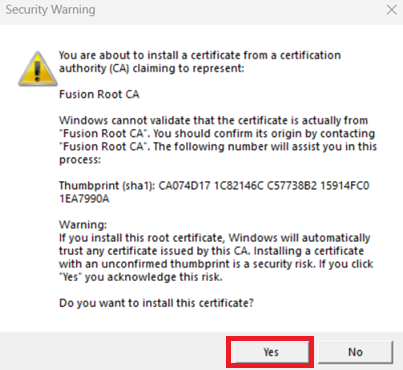
MS Windows may ask you to confirm the installation of the root certificates (if they are not present in the system):
Press "Yes" to allow the installation (as shown in the screenshots below).
6. Install VirtualBox (optional in case using hardware devices)
Go to the official website for VirtualBox installation instructions: https://www.virtualbox.org/