Update your Service
By now, you should have successfully deployed your Service to a Unit. Next step is to update your deployed Service.
Software updates for SDV
Once your Service is deployed to a Unit, maintaining it through regular updates becomes an essential part of your SDV (Software-Defined Vehicle) lifecycle. Software updates ensure that your deployed applications stay aligned with the latest features, configurations, and security patches.
In this section, you’ll learn how AosEdge manages software updates in the form of Service updates — from versioning and packaging to deployment and validation — so that you can deliver reliable, over-the-air improvements to your in-vehicle systems.
Overview
Service update process is basically identical to the initial deployment. It involves both SP and OEM users, as Service Provider will apply the changes and upload, then OEM user will need to approve the changes before actual deployment to the designated Unit.
- SP user
- Update code and/or config
- Update Service version
- Sign, Package & Upload
- Verify the update (optional)
- OEM user
- Approve the Update
Update code and/or config
Apply any changes needed to your Service's code, config, and artifacts that should be included in the update.
Update version
AosEdge accepts updates only when the Service version is incremented.
Service config YAML
Change the Service version in the Service config YAML.
Follow the semantic version system (x.y.z) to keep your update in the appropriate context.
See Version management for more details.
Sign & Upload
Just as you did in Get Started - Create a service, use below Aos CLI commands to sign and upload your updated Service package.
- sign -
aos_signer sign - upload -
aos_signer upload
Verify the update (optional)
AosEdge allows you to set a group of Units as Verification Set that bypass the OEM user's approval.
With Verification Set, SP user can verify the update on designated Units immediately after upload.
See Test before release for details.
Approve the update
After Service upload (or verification) by SP user, for OEM user, the Service will appear as Verification batch.

If acceptable, OEM user can click "Approve".
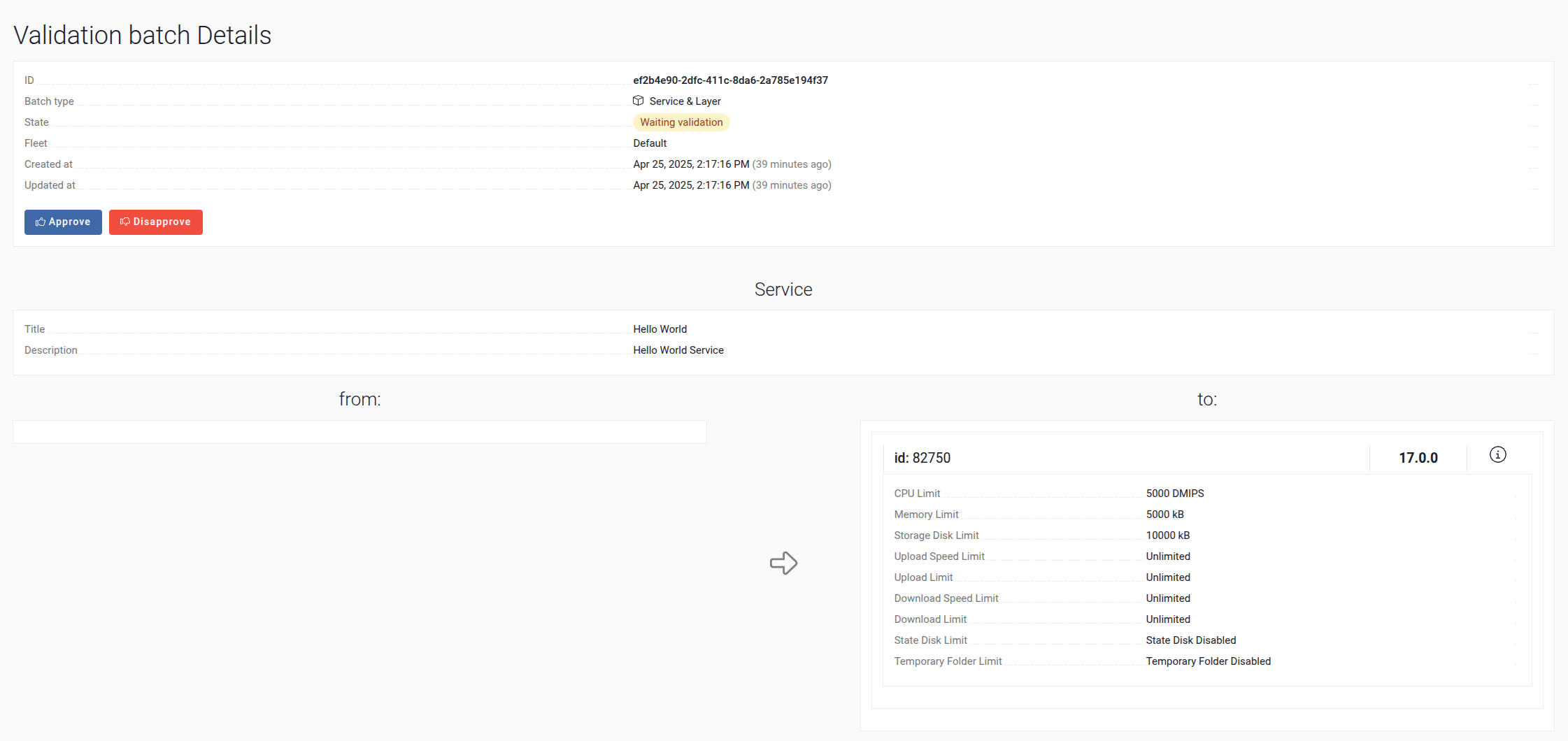
Then the Service will be deployed to the designated Unit.