Create your first AosEdge account
To start using AosEdge, the very fist thing you should do is to create your own user account in AosEdge.
Sign-up
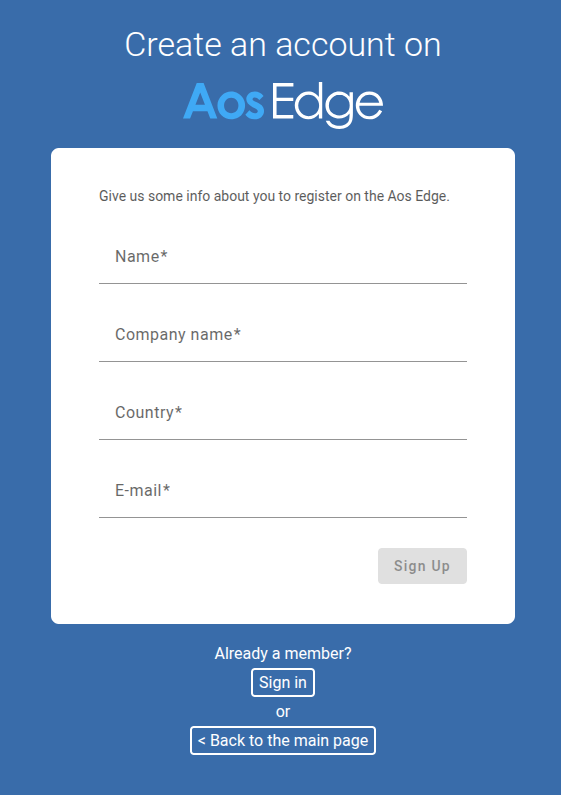
If you're new to AosEdge, click the Sign Up link on the AosEdge website to create a new account. Complete the registration form with the required details. Once complete, you will see a completion message that suggests to check your email for further instructions.
Welcome emails (for OEM and SP accounts)
After the sign-up, you will receive "two" welcome emails that include the further instructions.

Why two emails?
One email is for your OEM account, and the other is for your SP account. AosEdge has preset roles defined such as OEM, SP (Service Provider), and FO (Fleet Owner) to cover the basic automotive use cases. (See Add custom roles and permissions, for more detail on the predefined user roles)
Why OEM and SP accounts?
To enable your quick AosEdge experience, we start by providing OEM and SP accounts so you can act as both OEM and SP users.
Generally, OEM user manages the devices (or vehicles) and have full control of them to keep them secure and safe. SP users can be thought as your internal software team, external partners, or third party providers that develops and provides their application softwares.
So, by having both OEM and SP user accounts, you can experience the simplest flow of using AosEdge from registering a device as OEM user, up to deploying a software to the device as SP user.
User certificates (and NO passwords)
For user login and any authentication, AosEdge operates with password-less policy to ensure high security. So instead of passwords, certificates will be installed to your host machine to perform any major procedures of AosEdge.
Install user certificates
OEM certificate
You will receive an email like below for your OEM account.
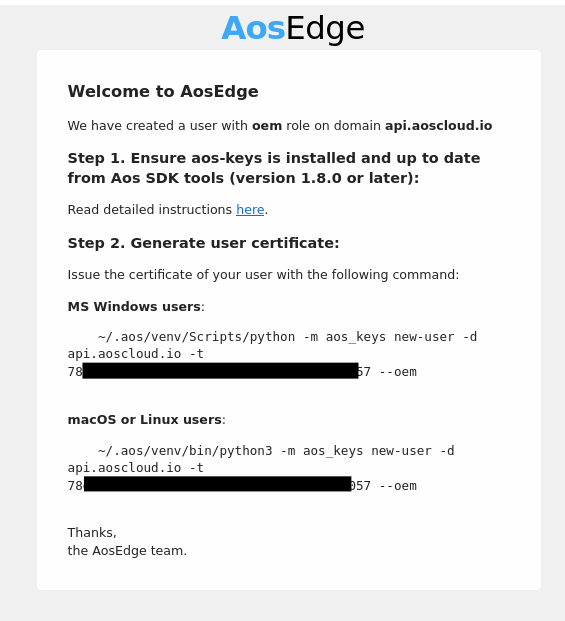
Copy the command under "Step 2. Generate user certificate:" and execute it in your terminal.
SP certificate
Repeat above procedure for SP account email.
Confirm installed certificates
To confirm the installed certificates, follow the instructions here.
Login
Click Sign in at the top-right of the AosEdge website.
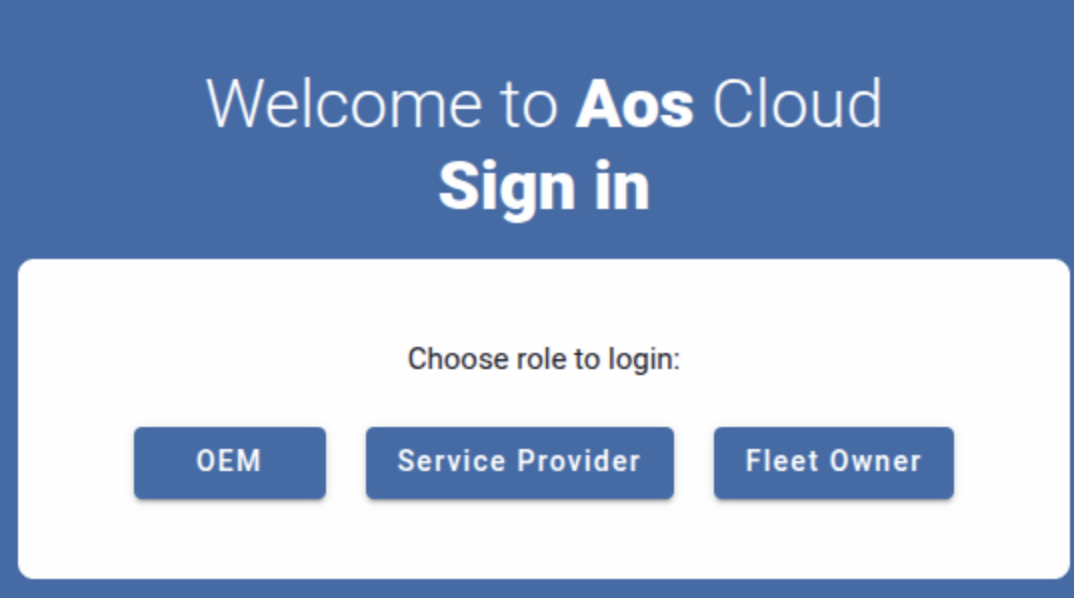
as OEM user
Click the OEM button. (Browser will ask to select the certificate.)
Select the OEM certificate. (OEM top page should appear.)
as SP user
Repeat above for SP certificate.
*If you want to login as SP user while keeping your OEM user logged in, use new incognito window or another browser.