Add other users
After your AosEdge account is created, you can add other users from your team, organization, partner companies, and others as needed.
When to add other users
If you are just starting to try AosEdge by yourself, by creating your account, you should already have your OEM and SP accounts, which should be enough for your initial trial.
If you are considering such as below cases, please consider adding your other users.
- Want to share the created environment with other colleagues and stakeholders in your team or organization.
- Want to try fleet features with FO (Fleet Owner) user account. (See 7. Fleets and scaled operation for detail.)
- Want to add other software teams or providers as SP users to try multi-tenant usage. (Please ask your EPAM support for this case)
Preset user roles
AosEdge is already configured with below specific user roles.
| User Role | Purpose | Responsibilities |
|---|---|---|
| OEM | OEM users represent manufacturers of vehicles or equipment integrated with our platform. | Managing units, creating and managing fleets, assigning Fleet Owners, and approving services and component updates. |
| SP (Service Provider) | SP users are responsible for delivering a set of services that are made available to OEMs and Fleet Owners. | Creating and managing services. |
| FO (Fleet Owner) | FO user manages a group of units as a single entity. | Managing assigned fleets and unit sets, validating updates within assigned fleets (services and components). |
| Admin | Admin (Administrator) role includes full permissions to configure and maintain the entire platform. | Managing platform-level organizations and access control. |
Who can add users
As AosEdge has predefined user roles, user creation permissions are configured as below.
- OEM user - can add OEM & FO users
- SP user - can add SP users within the same Service Provider
- FO user - can add FO users within the same Fleet
Add new user
Go to Users page.
Click "+" icon at the top-right corner. Fill in the pop-up registration form with user information.
- Role: Available user roles will be listed.
- Permission groups: Permission Groups available to the role will be listed. Each role has one preset permission group.
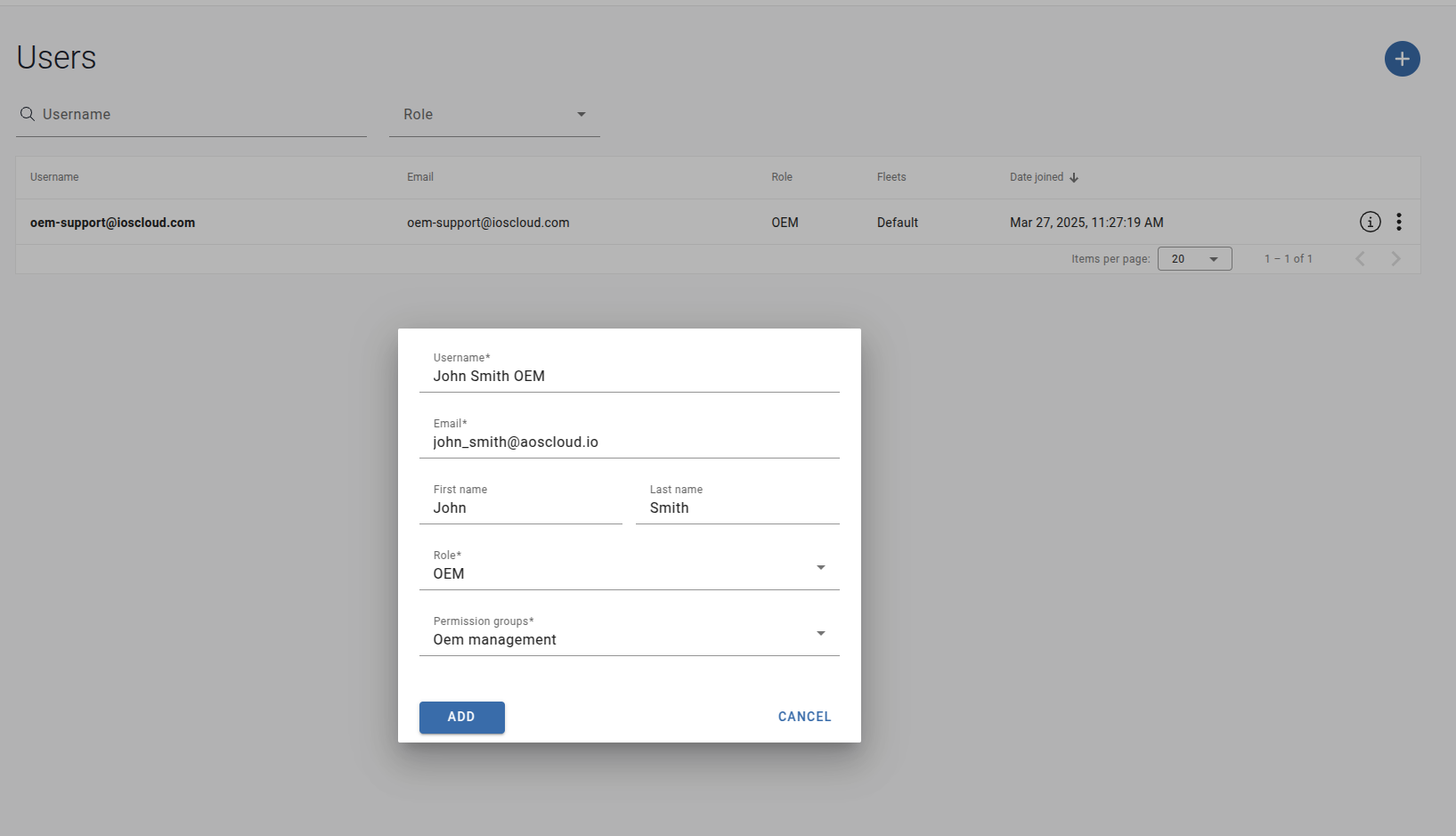
Click ADD button.
Invitation email will be sent to the registered email address.
Then the responsible user should follow the instruction on the email.