aos-keys
The aos-keys tool is designed to manage users' certificates and private keys.
The tool can generate users' private keys and store it locally, request a certificate and install it into the web browsers.
Also, aos-keys can install current Aos root certificates to system storages/vaults and into the major browsers.
To use this tool, it's necessary to prepare your OS. Read the detailed instruction how to install or update to the latest version.
Show the version
Command shows aos_keys installed version
-V, --version
Select your operating system below
- Windows
- macOS/Linux
In the terminal window, execute the next command:
~/.aos/venv/Scripts/python -m aos_keys -V
In the terminal window, execute the next command:
~/.aos/venv/bin/python -m aos_keys -V
Show help
Command shows aos_keys general help or help for a selected command
-h, --help
install-cert -h
new-user -h
Select your operating system below
- Windows
- macOS/Linux
In the terminal window, execute the next command:
~/.aos/venv/Scripts/python -m aos_keys -h
In the terminal window, execute the next command:
~/.aos/venv/bin/python -m aos_keys -h
Installing root certificates
Select your operating system below
- Windows
- macOS
- Linux
In the terminal window, execute the next command:
~/.aos/venv/Scripts/python -m aos_keys install-root
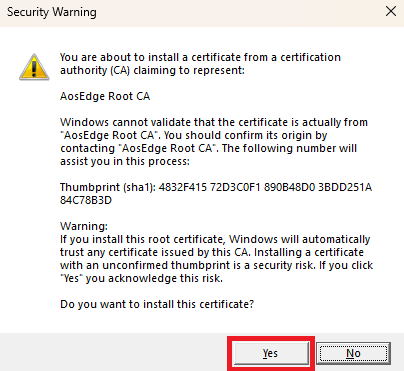
MS Windows might ask confirmation to install the root certificate, if it doesn't present on the system:
Press "Yes" to allow installation, as shown on the screenshot below.
In a terminal, execute the next command:
~/.aos/venv/bin/python3 -m aos_keys install-root
In a terminal execute the following command:
~/.aos/venv/bin/python3 -m aos_keys install-root
After this command, it's necessary to install the Aos Root certificate system-wide.
To do this, run the following command, as suggested by the aos-keys install-root script :
sudo ~/.aos/scripts/install_aos_root_ca.sh
Request a new certificate for the AosCloud user
Command generates AosCloud user private key, Certificate Sign Request and issue user's certificate using AosCloud CA.
Format of the command:
new-user [-h] [-o OUTPUT_DIR] [-d REGISTER_DOMAIN] [-t TOKEN] [-oem] [-s] [-f] [-a] [-e] [--skip-browser-install]
The options are as follows:
| Option | Required | Description |
|---|---|---|
| -d, --domain | + | AosCloud domain (base URL) to issue user's certificate |
| -t, --token | + | Token to prove user's person. Issued by AosCloud. |
| --oem, --sp, --fleet | + | User's role. Can be OEM (--oem), FleetOwner (--fleet) or Service provider (--sp) |
| -e, --ec | Generate private key using Elliptic Curves. Default: true | |
| --skip-browser-install | Do not install issued certificate into browsers. Default: false | |
| -o, --output-dir | Output directory for private keys and certificate. Default: ~/.aos/security |
Example:
- Windows
- macOS/Linux
In the terminal window, execute the next command:
~/.aos/venv/Scripts/python -m aos_keys new-user -d api.aoscloud.io -t [USER_TOKEN_HERE] --oem
In the terminal window, execute the next command:
~/.aos/venv/bin/python3 -m aos_keys new-user -d api.aoscloud.io -t [USER_TOKEN_HERE] --oem
Install user's certificates into browsers
Command installs user's certificate and private key pair into browser
Format of the command:
install-cert [-h] [-o CERT_FILE_NAME] [--oem | --sp | --fleet ]